How to Secure Online Accounts in 2026 — The Complete Step-by-Step Guide
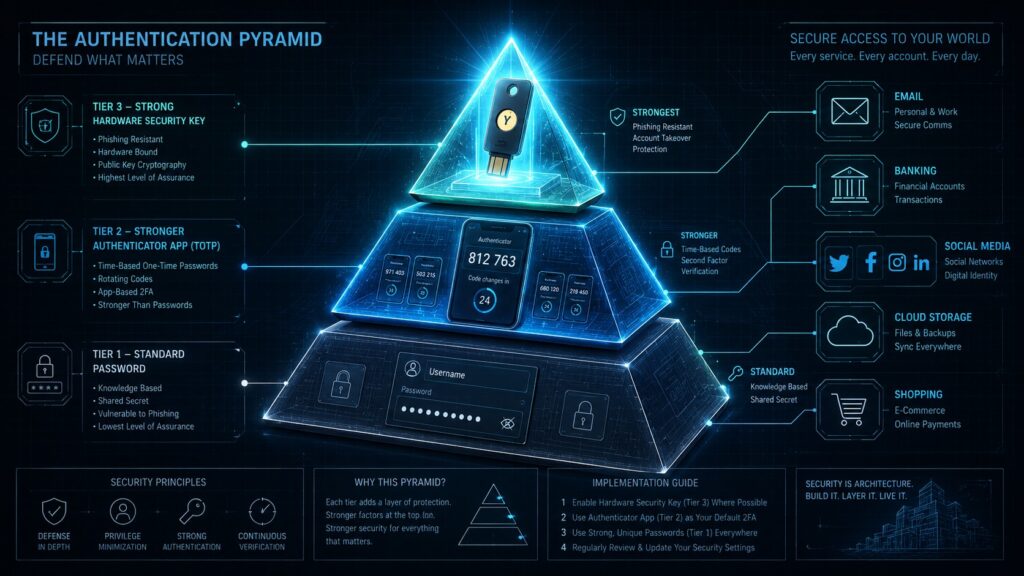
Why This Matters

If you want to secure online accounts against modern threats, this guide covers every layer — from password managers and hardware keys to data brokers and physical security.
Most people think about security after something goes wrong. A password leaked in a breach. An account taken over. A bank transaction they didn’t make. By that point the damage is already done and recovery is measured in hours, days, or in serious cases, months.
The threat landscape has shifted. Attackers no longer need to target you specifically. Automated tooling scrapes breach databases, tests credential combinations across thousands of sites simultaneously, and flags successful logins without human intervention. If your email and password appeared in any breach — ever — that combination is being tried right now against your bank, your email, your cloud storage.
This is not hypothetical. Have I Been Pwned (haveibeenpwned.com) currently indexes over 14 billion breached accounts. That number grows every month.
Who gets targeted
The answer is everyone, but exposure is not equal. Higher value targets include:
- Anyone with access to business systems, client data, or financial accounts
- IT professionals and MSP engineers — a single compromised account can pivot into dozens of client environments
- People with a public profile: social media presence, business ownership, professional directories
- Anyone whose email address appears in a data broker database — which is most people
Attackers prioritise return on effort. The easier your accounts are to compromise relative to their value, the higher up the target list you sit.
What actually happens when an account is compromised
A compromised email account is not just a compromised email account. Email is the recovery mechanism for almost every other account you own. Whoever controls your inbox can reset your bank password, your cloud storage, your domain registrar, your password manager recovery — the entire chain collapses from one point of failure.
Beyond account takeover: breached credentials fuel identity fraud, targeted phishing, SIM swap attacks, and in business contexts, invoice fraud and Business Email Compromise (BEC) — where attackers impersonate suppliers or colleagues to redirect payments.
How to use this guide
This guide is structured to build your defences layer by layer, starting with fundamentals and extending into advanced operational security. Each section stands alone if you want to address a specific gap. The final section contains a quick reference summary and a curated list of tools.
Before you read further, open digital-defense.io in a browser tab. It is an open source, interactive security checklist covering 12 domains from authentication to physical security, tiered by Essential, Optional, and Advanced. Work through it alongside this guide. Every item you tick off is measurable progress.
Understanding the Attack Surface

Before building defences it helps to understand what attackers are actually working with.
What credentials are worth to an attacker
A username and password combination for a low-value forum account appears worthless in isolation. It isn’t. Most people reuse passwords. Attackers know this and run credential stuffing attacks — automated tools that take a leaked username/password pair and test it against hundreds of other services. The forum password becomes the bank password. The bank password becomes the email password. One breach cascades.
Credentials are bought and sold in bulk. A dump of one million email/password combinations has a market price. The individual accounts in that dump are not examined manually — they are processed by automation that identifies which ones grant access to something valuable and flags those for human attention.
What breach data actually contains
Breaches vary in severity. At minimum, a breach exposes an email address — enough to target you with phishing. More serious breaches expose:
- Plaintext or weakly hashed passwords (MD5, SHA1 without salt — crackable in seconds)
- Full name, date of birth, phone number, address
- Security question answers
- Payment card data
- Government ID numbers
- IP address history and device fingerprints
- Private messages
The combination of name, date of birth, email, and phone number is enough to attempt a SIM swap — transferring your mobile number to an attacker-controlled SIM, bypassing SMS-based MFA on every account that uses it.
How attackers chain exposures
A single breach rarely enables a full account takeover directly. Attackers combine data from multiple sources:
- Email address from breach A
- Password from breach B (same email, different service, reused password)
- Phone number and date of birth from a data broker
- Security question answers from a social media profile
- SIM swap using phone number and personal data
- SMS MFA bypassed — account accessed
Each step uses publicly available or cheaply purchased data. None of it requires technical sophistication beyond the first breach.
The human layer
Technology fails less often than people do. Social engineering — manipulating humans rather than exploiting software — is consistently the most effective attack vector.
Common forms:
- Phishing — email or SMS impersonating a trusted entity to harvest credentials or deliver malware
- Vishing — phone-based impersonation, often targeting service desks or individuals directly
- Pretexting — constructing a believable scenario to extract information or action (a caller claiming to be IT support, an HR contact, a supplier)
- BEC (Business Email Compromise) — impersonating a colleague or supplier to redirect payments or extract data
The defining characteristic of effective social engineering is urgency. Pressure applied at the exact moment a target is being asked to verify something or take an action. A meeting in five minutes. A payment that needs to go today. A system that will lock if not reset immediately. Urgency is manufactured to prevent the target from thinking carefully.
Recognising this pattern is the single most transferable defensive skill covered in this guide. No technology replaces it.
Password Management

Why reuse is catastrophic
Password reuse is the root cause of the majority of account takeovers that do not involve phishing. If you use the same password on two services and one of those services is breached, both accounts are compromised. If you use that password on ten services, all ten are compromised simultaneously — and you will not know which breach exposed it or how long ago.
This is not a theoretical risk. Credential stuffing attacks run continuously against every major platform. The question is not whether your reused password will be tested — it will be — but whether it will match.
What makes a strong password
Length is the primary factor. A 20-character random string is exponentially harder to crack than an 8-character complex password. The NCSC guidance and current NIST standards both confirm this: length beats complexity rules.
Characteristics of a strong password:
- Minimum 16 characters, ideally 20+
- Randomly generated, not based on words, names, dates, or patterns
- Unique per service — never reused anywhere
- Not based on personal information that appears in breach data or social media
The practical implication: no human can generate and remember hundreds of unique 20-character random passwords. This is exactly why password managers exist.
Password managers
A password manager generates, stores, and autofills strong unique passwords for every service you use. You remember one master password. The manager handles everything else.
Keeper (recommended)
- Zero-knowledge encrypted vault — Keeper cannot read your passwords
- FIDO2/WebAuthn hardware key support for vault login
- Available on all platforms with browser extensions
- Business and personal plans
- Breach Watch feature monitors credentials against known breaches
Alternatives:
- Bitwarden — open source, self-hostable, free tier is genuinely capable, strong community audit record
- 1Password — polished UX, Travel Mode for border crossings, strong business features, no free tier
- Proton Pass — from the Proton privacy suite, open source, integrated with ProtonMail ecosystem
What to avoid:
- Browser-saved passwords as your primary store — no hardware key support, synced to your browser account which is itself a target
- Spreadsheets — unencrypted by default, no autofill protection against phishing
- Reusing your password manager password anywhere else
Securing the vault
Your password manager master password is the highest value credential you own. Treat it accordingly:
- It must be unique — used nowhere else, ever
- It must be strong — 20+ characters, not a dictionary phrase
- Hardware key (FIDO2) should be the primary MFA method on the vault
- Never store the master password digitally in plain text
Critical gotcha: TOTP in your password manager
Many password managers, including Keeper, support storing TOTP codes alongside passwords. This is convenient and it undermines your MFA entirely.
MFA exists to require a second independent factor. If your password and your TOTP code are both inside the same vault, compromising the vault gives an attacker both factors simultaneously. The MFA separation is destroyed.
Store TOTP codes in a dedicated authenticator app. Keep passwords and TOTP codes in separate applications. This is non-negotiable.
Multi-Factor Authentication
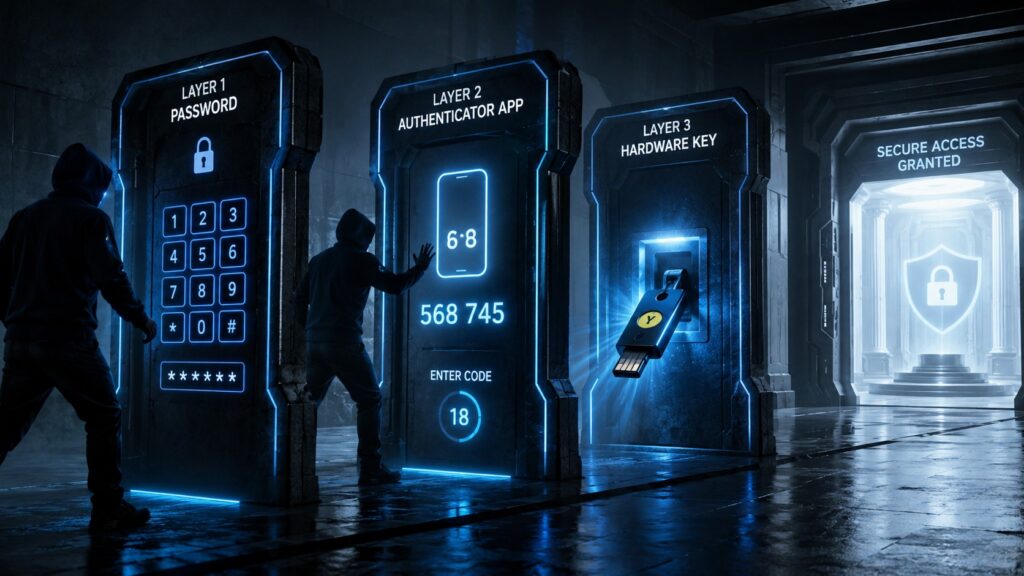
MFA requires an attacker to compromise two independent factors rather than one. A stolen password alone is not enough. This single change eliminates the vast majority of automated credential attacks.
Not all MFA is equal. The method matters as much as having MFA at all.
MFA methods ranked — best to worst
- FIDO2 hardware security key — phishing-resistant, hardware-bound, no shared secret transmitted
- Passkey — FIDO2-based, device-bound or synced, phishing-resistant (covered in Section 5)
- TOTP authenticator app — time-based codes, not phishing-resistant but significantly better than SMS
- Push notification (Microsoft Authenticator, Duo) — vulnerable to MFA fatigue attacks
- SMS OTP — weakest accepted form, vulnerable to SIM swap and SS7 interception
- No MFA — credential stuffing succeeds on first attempt
Why SMS MFA is weak
SMS-based MFA is better than nothing but is the weakest broadly-used method. Two active attack vectors:
- SIM swap — attacker contacts your mobile carrier impersonating you, transfers your number to their SIM using personal data sourced from breaches or data brokers. All SMS codes now route to the attacker.
- SS7 exploitation — protocol-level vulnerability in the global telephony network allowing interception of SMS messages. Used by nation-state actors and increasingly by organised criminal groups.
Any service that offers a stronger MFA method should have SMS disabled once that method is enrolled.
Authenticator apps
TOTP (Time-based One-Time Password) apps generate a six or eight digit code that refreshes every 30 seconds. The code is generated locally on your device — nothing is transmitted until you type it in. Far harder to intercept than SMS.
2FAS (recommended)
- Open source, MIT licensed
- iCloud and Google Drive E2EE backup
- No account required
- Browser extension for desktop TOTP autofill
- Unlimited entries
- iOS and Android
Alternatives:
- Ente Auth — open source, end-to-end encrypted cloud sync, cross-platform
- Proton Authenticator — open source, integrates with Proton ecosystem
- Aegis (Android only) — open source, local encrypted backup, no cloud dependency
- Authy — avoid. Proprietary, closed source, Twilio-owned (Twilio has been breached). Synced seed storage means Twilio holds your TOTP secrets.
Hardware security keys
A hardware key is a physical device you insert or tap. It performs cryptographic authentication locally and never transmits a replayable secret. Even if a phishing site captures your login attempt, there is nothing to replay — the authentication is bound to the legitimate domain.
YubiKey range — differences that matter:
- YubiKey Security Key (blue) — FIDO2/WebAuthn only. No OTP, no NFC on older models. Cheapest option. Adequate for FIDO2-only use cases but limited as a backup key.
- YubiKey 5 NFC — FIDO2, TOTP via Yubico Authenticator, OTP, PIV, OpenPGP, NFC. The most versatile consumer key.
- YubiKey 5C NFC — same as above, USB-C connector
- YubiKey 5 FIDO FIPS — FIDO2, OTP, PIV, OpenPGP, FIPS 140-2 validated. Black casing. Highest assurance rating — relevant for regulated environments.
Alternatives to YubiKey:
- Google Titan Key — FIDO2 only, Google-backed, no TOTP or PIV support
- Nitrokey — open source hardware, FIDO2 and OpenPGP support, EU-manufactured
- OnlyKey — open source, stores TOTP seeds on-device, PIN protected
Running multiple keys
You need a minimum of two hardware keys. A single key is a single point of failure — lose it and you are locked out of every account that uses it as the only MFA method.
Recommended minimum setup:
- Primary key — on your keyring, daily use
- Backup key — stored securely offline, same capabilities as primary
- Third key — optional, stored at a separate physical location for disaster recovery
Critical capacity gotcha
YubiKey 5 series holds 25 resident FIDO2 credentials and 32 TOTP slots via Yubico Authenticator. These limits sound generous until you start enrolling all your accounts. Plan your allocation before you start.
More importantly: TOTP secrets stored via Yubico Authenticator are bound to that specific key. They do not sync between keys. If you want both your primary and backup key to generate the same TOTP codes, you must enrol both keys simultaneously during initial setup — when the service displays the QR code. You cannot add a backup key to an existing TOTP enrolment without resetting MFA for that service entirely.
Enrol both keys at the same time. Every time.
Passkeys — The Password Killer

Passkeys are the most significant shift in authentication since the password itself. Understanding what they are and where they fit determines how you deploy them correctly.
How passkeys work
A passkey is a FIDO2 credential. When you register a passkey with a service, your device generates a cryptographic key pair — a private key stored on your device and a public key sent to the service. When you authenticate, your device signs a challenge using the private key. The service verifies the signature using the public key. Your private key never leaves your device. There is no password to steal, no code to intercept, and the authentication is cryptographically bound to the legitimate domain — a phishing site cannot replay it.
This is the same underlying technology as hardware security keys. The difference is where the private key lives.
Device-bound vs synced passkeys
- Device-bound passkeys — private key stored in hardware (TPM, Secure Enclave, or a YubiKey). Cannot be exported. Highest security. If the device is lost, the passkey is gone — you need a recovery method.
- Synced passkeys — private key stored in a password manager or platform keychain (iCloud Keychain, Google Password Manager, Keeper). Synced across your devices. Convenient but the security is only as strong as the keychain protecting them.
Both are phishing-resistant. Both are categorically better than passwords plus SMS MFA. The distinction matters when defining your threat model for highest-value accounts.
Passkeys vs passwords vs hardware keys
| Method | Phishing resistant | Requires device | Survives device loss |
|---|---|---|---|
| Password | No | No | Yes |
| Password + SMS | No | No | Yes |
| Password + TOTP | No | Yes | With backup codes |
| Passkey (synced) | Yes | Yes | Yes (via keychain) |
| Passkey (hardware) | Yes | Yes | No — needs backup key |
| Hardware key FIDO2 | Yes | Yes | No — needs backup key |
Where hardware keys still matter
Synced passkeys move the security question from “secure the key” to “secure the keychain.” If your iCloud account or Google account is compromised, synced passkeys stored there are compromised too. For the highest-value accounts — your password manager, your primary email, your cloud infrastructure — hardware-bound credentials remain the strongest option.
Use synced passkeys broadly. Use hardware keys for your most critical accounts.
Where to check support
Before assuming a service supports passkeys or a specific MFA method, verify it:
- passkeys.directory — comprehensive directory of services with passkey support, updated by the community, filterable by category
- 2fa.directory — shows which MFA methods each service supports (TOTP, hardware key, SMS, email)
- itsactually.fail — documents services that claim to support strong MFA but implement it poorly, maintain SMS as a bypass, or allow account recovery that circumvents MFA entirely
The last resource is underused. A service that supports FIDO2 but also allows SMS account recovery has not eliminated the SMS attack vector — it has just made it one step harder to reach. itsactually.fail surfaces exactly these gaps.
Where passkeys fall short today
- Not universally supported — many services TOTP or SMS only
- Some implementations require a password as fallback, preserving the attack surface
- Account recovery flows frequently bypass passkey authentication entirely
- Shared or organisation accounts complicate passkey management
- Some services enrol passkeys but keep SMS as an account recovery bypass — negating the security gain
Check the implementation, not just whether passkeys are listed as supported.
Building Your MFA Stack
Understanding MFA methods in isolation is the theory. This section is the practice — how to allocate credentials across your accounts systematically so your highest-value accounts have the strongest protection and nothing falls through the gaps.
The three-tier model
Tier 1 — FIDO2 hardware key
Reserved for accounts where compromise causes the most damage. These accounts are the foundation everything else rests on.
- Password manager (Keeper or equivalent)
- Primary email account
- Microsoft/Entra ID / work SSO
- Google account
- GitHub
- Cloudflare
- Domain registrar
- Any financial account that supports it
Tier 2 — TOTP via authenticator app (2FAS)
All accounts that support TOTP but not FIDO2, plus Tier 1 accounts as a fallback method (enrolled but not primary).
- Banking and financial services
- Social media
- SaaS tools (Datto, Autotask, etc.)
- Development platforms
- Any service not supporting FIDO2
Tier 3 — Password only
Accounts where the risk of compromise is low and no MFA is available or the account holds no sensitive data or payment information.
Allocation rules
- Supports FIDO2 → hardware key as primary, TOTP as backup
- Supports TOTP only → 2FAS
- Never TOTP in Keeper — defeats MFA separation
- SMS MFA: disable it once a stronger method is enrolled, not before
- Never remove a weaker MFA method until a stronger one is confirmed working
Migration strategy
Working through 80+ services is not a single session task. A structured approach prevents lockouts and missed accounts.
- Export your password manager entries to get a full service list
- Build a spreadsheet: service name, FIDO2 support (check passkeys.directory / 2fa.directory), TOTP support, current MFA method, target MFA method, completion status
- Start with Tier 1 accounts — these are the ones that matter most and the ones most likely to support FIDO2
- Enrol both hardware keys simultaneously on every service — primary and backup
- Confirm the new method works before disabling the old one
- Work through Tier 2 systematically — one category at a time reduces context switching
- Mark completion only after testing login with the new method end to end
Tracking progress
| Service | Current MFA | Target MFA | Complete |
|---|---|---|---|
| Keeper | None | YubiKey FIDO2 | ✓ |
| Gmail | SMS | YubiKey FIDO2 + 2FAS backup | |
| GitHub | TOTP | YubiKey FIDO2 + 2FAS backup |
Build the full list before starting. Partial migration with no tracking is how accounts get missed.
Breach and Identity Monitoring

Monitoring does not prevent breaches. It tells you when your data has appeared in one so you can act before an attacker does. The faster you rotate a compromised credential, the smaller the window of exposure.
Have I Been Pwned (haveibeenpwned.com)
The baseline. Free, operated by Troy Hunt, widely trusted. Indexes billions of breached credentials and notifies you when your email address appears in a newly indexed breach. Set up monitoring for every email address you use. Takes two minutes. No reason not to.
API access is available for programmatic monitoring. The k-anonymity model means your full password hash is never transmitted during a password check — only the first five characters of the SHA-1 hash are sent, protecting your actual credential during the query.
Mozilla Monitor (monitor.mozilla.org)
Free. Pulls from the HIBP dataset. The value over HIBP alone is the dashboard — it tracks which breaches you have resolved and which still require action, giving you a cleaner view of your outstanding exposure. Run both. The overlap is intentional.
XposedOrNot (xposedornot.com)
Open source, MIT licensed, source auditable on GitHub. Runs its own breach database independent of HIBP — smaller dataset but adds marginal coverage for breaches HIBP has not yet indexed. Free. Email-only monitoring. Run it alongside HIBP rather than instead of it.
DeHashed (dehashed.com)
The most comprehensive breach search available to individuals. Searches across email, username, phone number, IP address, name, and address simultaneously. The depth of data surfaced goes significantly beyond what HIBP covers.
Pricing has moved to approximately $22/month — difficult to justify for ongoing personal monitoring. The practical approach: buy one month, run a full audit of all your identifiers, document everything exposed, cancel. Repeat annually. One-time cost of ~$22/year for a thorough picture is defensible. Continuous subscription for personal use is not.
Incogni (incogni.com)
Data broker removal, not breach monitoring. Incogni contacts 420+ data broker and people-search sites with automated removal requests on your behalf. Removes the personal data that fuels SIM swap attacks, targeted phishing, and social engineering — name, address, phone number, date of birth.
Approximately $7.99/month. Made by Surfshark — independently reviewed by PCMag and AllAboutCookies. UK-compatible. The distinction from breach monitoring is important: Incogni reduces your exposure before a breach happens. HIBP tells you after.
Microsoft Defender (microsoft365.com)
If you have a Microsoft 365 Personal or Family subscription, dark web monitoring is included at no additional cost via Microsoft Defender. Monitors email address, phone number, and in some regions additional identifiers. Check whether your existing subscription includes it before paying for a separate service.
What monitoring cannot tell you
- It cannot tell you whether your credentials have already been used against you
- Breach notification is reactive — data may have been circulating for months before a breach is indexed
- Monitoring your email address does not cover aliases, usernames, or phone numbers unless you register those separately
- A clean HIBP result does not mean your credentials are safe — it means they have not appeared in a publicly indexed breach
Monitoring is one layer. It works in combination with unique passwords, strong MFA, and data broker removal — not as a standalone defence.
Reducing Your Exposure — Data Brokers

What data brokers hold
Data brokers are companies that collect, aggregate, and sell personal information. Their databases contain combinations of: full name, current and historical addresses, phone numbers, date of birth, email addresses, relatives’ names, employment history, property records, and in some cases financial and legal history.
This data is sourced from public records, loyalty schemes, social media scraping, app telemetry, and purchases from other data brokers. Most people have profiles on dozens of broker sites without knowing it.
Why removal matters
The data brokers hold is the raw material for targeted attacks. An attacker with your name, phone number, date of birth, and current address can:
- Attempt a SIM swap with your mobile carrier
- Answer security questions on accounts using personal information
- Craft convincing pretexting scenarios for social engineering
- Target your family members as vectors to reach you
Removing this data does not make you invisible. It raises the cost and effort of targeting you specifically.
Automated removal: Incogni
Incogni sends automated removal requests to 420+ data broker sites and monitors for re-addition. Approximately $7.99/month, UK-compatible, independently reviewed. The primary limitation is coverage — 420 sites is not every broker in existence, and new brokers appear regularly.
Automated removal: DeleteMe
Approximately $10.75/month. Longer track record than Incogni, human-reviewed process, covers approximately 950 broker sites examined. Consumer Reports independently tested deletion success rates at approximately 27% — lower than the marketing implies. Still worthwhile as a complement to Incogni for broader coverage.
Manual removal
For brokers not covered by automated services, manual removal is possible. The process for each site typically involves:
- Search for your profile on the broker site
- Locate the opt-out or removal request link (usually in the footer or privacy policy)
- Submit the request — may require email verification
- Follow up if not removed within 30 days
UK residents have additional leverage under GDPR Article 17 (right to erasure). A formal erasure request to a data broker operating in or serving UK residents carries legal weight that a standard opt-out does not.
Setting realistic expectations
Data broker removal is ongoing maintenance, not a one-time task. Brokers re-add profiles from public records. New brokers launch. Automated services handle re-addition monitoring; manual removal requires periodic re-checking.
The goal is sustained reduction of your surface area, not elimination. Every piece of personal data removed is one fewer tool available to an attacker.
Email Aliases and Identity Compartmentalisation
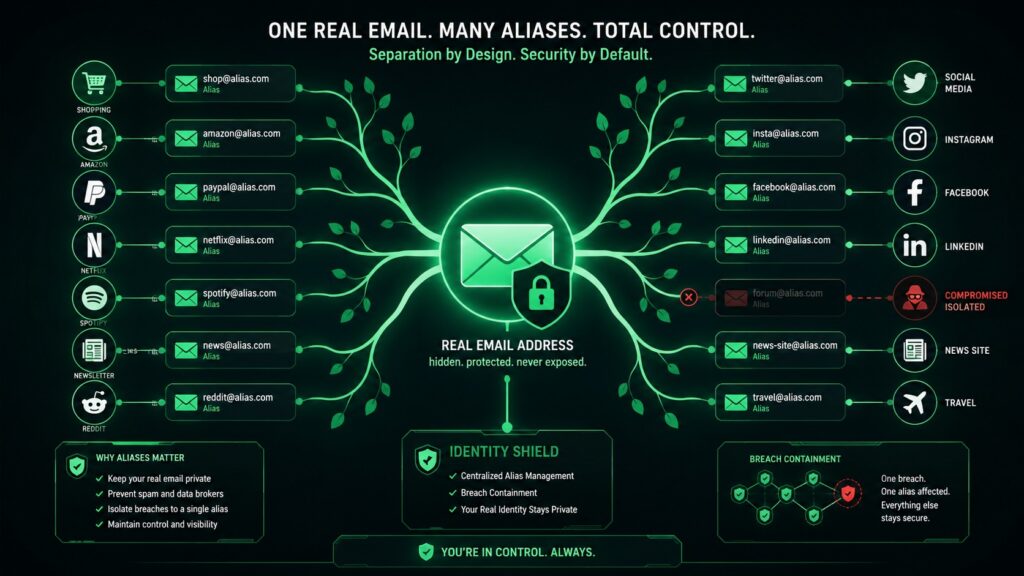
Why your real email address is an attack vector
Your real email address is a persistent identifier. Once it appears in a breach, it is in breach databases permanently. Every service you sign up to with your real address adds it to another database, another potential breach, another source of targeted phishing.
Beyond breach exposure: your email address is your account recovery mechanism for most services. An attacker who knows your real email address has the first half of what they need to attempt account recovery on everything tied to it.
The alias model
An email alias forwards to your real inbox but exposes only the alias address to the service you are registering with. One alias per service. When a service is breached or starts sending spam, you know exactly which service leaked your address, and you disable that alias — your real address remains unexposed and unaffected.
SimpleLogin (simplelogin.io)
Open source, self-hostable, owned by Proton. Free tier includes 10 aliases. Paid tier (included with Proton Unlimited) is unlimited. Supports custom domains — your aliases can use your own domain, making them portable if you ever leave SimpleLogin. The combination of open source codebase and Proton ownership is the strongest trust profile in this category.
AnonAddy (addy.io)
Open source, self-hostable. Free tier includes unlimited aliases with usage limits. Paid tier removes limits. Custom domain support. Similar capability to SimpleLogin — the choice between them is largely preference.
Apple Hide My Email
Built into iCloud+. Generates random Apple-managed aliases. No custom domain support. Tied to the Apple ecosystem — if you leave Apple, aliases cannot be migrated. Convenient for Apple users who are not concerned about vendor lock-in.
Alternatives:
- Firefox Relay — free tier with 5 aliases, paid tier unlimited, Mozilla-operated
- Fastmail Masked Email — available with Fastmail subscription, integrates with Bitwarden
Custom domain aliases
The portability argument for custom domains is strong. If you register your aliases under your own domain (e.g. amazon@yourdomain.com), you can move the domain to a different alias service without changing a single alias at the service end. Your email address survives provider changes indefinitely.
Requires owning a domain and pointing MX records to your alias provider. One-time setup, lasting control.
Gotcha: the alias service as a single point of failure
Your alias service is now in the critical path for all email. If SimpleLogin or AnonAddy has an outage, emails to your aliases do not arrive. If the service shuts down, all aliases stop working simultaneously.
Mitigations:
- Use a custom domain so aliases are portable
- Maintain a direct address at your primary inbox provider as a fallback for the most critical accounts
- Keep a record of which alias maps to which service
Recognising Social Engineering

No technical control defeats a well-executed social engineering attack against a person who does not recognise the pattern. This section covers the patterns.
Urgency is the weapon
Every effective social engineering attempt manufactures urgency. The reason is simple: urgency suppresses critical thinking. A person under time pressure makes faster decisions with less scrutiny. The specific scenario varies — a meeting in five minutes, a payment that must go today, a system that will lock unless reset immediately — but the mechanism is always the same.
The correct response to any unusual request accompanied by urgency is to slow down, not speed up. Urgency applied at the exact moment verification is being requested is a specific red flag, not a reason to expedite the process.
Vishing — phone-based attacks
Vishing (voice phishing) targets individuals and service desks directly by phone. The attacker impersonates an employee, supplier, IT support contact, or authority figure. Common scenarios:
- Employee calling their own IT service desk claiming to need an MFA reset urgently
- Supplier calling accounts payable claiming bank details have changed
- “IT support” calling an employee claiming their account has been compromised and they need to install remote access software
Effective vishing attacks use information gathered from LinkedIn, company websites, breach data, and social media to appear convincingly informed. Knowing the name of a colleague, the name of an IT system, or an internal project name does not verify identity.
Service desk targeting
Service desks are high-value targets because they have the access and the mandate to reset credentials, bypass MFA, and unlock accounts. A successful vishing attack on a service desk can achieve in minutes what technical exploitation might take hours.
The specific attack pattern is: impersonate a user, claim a failed MFA, apply urgency, request a bypass. Defence is a documented, non-negotiable verification procedure that does not allow urgency to override the process. Verification goes to a known contact via a known channel — never to a number or address provided by the caller.
BEC — Business Email Compromise
BEC attacks impersonate trusted contacts — colleagues, suppliers, executives — to manipulate financial transactions or extract data. The most damaging variant is invoice redirection: a spoofed supplier email instructing accounts payable to use new bank details, citing a routine reason like a financial year changeover.
Key indicators:
- Domain is a lookalike — registered recently
- Tone is casual and familiar to reduce suspicion
- Request deviates from established process (bank detail changes, urgent payments)
- Pressure to act before verification can be completed
Any request to change payment details must be verified by a separate, pre-established communication channel — a known phone number, not the one in the email.
Phishing
Email and SMS phishing remains the highest-volume attack method. Key indicators:
- Sender domain does not match the organisation it claims to represent — check carefully, not just the display name
- Unexpected request for credentials, MFA codes, or personal information
- Links that do not match the destination when hovered
- Urgency and threat language: account suspension, failed payment, security alert
- Attachments from unexpected senders, especially HTML files, ZIP archives, or Office documents
A genuine organisation will never ask for your password or MFA code via email, ever. No exceptions.
MFA fatigue
Push notification MFA (Microsoft Authenticator, Duo) can be exploited by sending repeated authentication requests until the user approves one to make them stop. Mitigate by switching to number-matching or FIDO2 rather than simple push approval.
Red flag checklist
- Request involves credential reset, MFA bypass, or account access change
- Caller cannot complete standard verification
- Urgency is applied at the point of verification
- Contact method was initiated by the requester, not by you
- Request deviates from documented procedure
- Verification attempt goes to a number or address provided during the call
- Callback to the provided number results in a dead line or voicemail
Any single item on this list warrants escalation and refusal to proceed until independently verified.
Securing Your Accounts at the Platform Level

Your primary email account is the master key
Every account recovery flow leads back to email. Whoever controls your primary inbox can reset your bank, your cloud storage, your domain registrar, your password manager recovery email — the entire chain. Your email account is not one account among many. It is the account.
Minimum requirements for your primary email:
- FIDO2 hardware key as primary MFA — no exceptions
- TOTP as backup MFA — not SMS
- SMS disabled entirely once stronger MFA is enrolled
- Recovery email must be a second account you control with equivalent security, not a legacy address with weaker protection
- Review active sessions and connected apps quarterly — revoke anything unrecognised
Microsoft accounts and Entra ID
For personal Microsoft accounts: enrol a hardware key at account.microsoft.com, disable SMS recovery, set the Microsoft Authenticator app with number matching rather than simple push approval as a TOTP fallback.
For Entra ID (business accounts): Conditional Access is the primary control layer.
Key policies to implement:
- Require MFA for all users, all apps, all locations — no exceptions for internal networks
- Block MFA registration from untrusted locations — prevents an attacker who has stolen credentials from enrolling their own MFA device
- Require compliant or Hybrid Azure AD joined device for access to sensitive resources
- Block legacy authentication protocols — Basic Auth, SMTP AUTH — these bypass MFA entirely
- Enable sign-in risk and user risk policies via Entra ID Protection where licensing allows
A phishing incident that compromises credentials in an environment without Conditional Access blocking legacy auth will bypass every MFA control you have deployed.
Google account hardening
- Enrol hardware key at myaccount.google.com/security
- Enable Google Advanced Protection Programme if you are a high-risk individual — locks the account to hardware keys only, restricts third-party app access
- Review connected apps at myaccount.google.com/permissions — revoke anything you do not actively use
- Check account recovery options — remove phone number recovery if FIDO2 is enrolled
- Enable suspicious activity alerts
Domain and DNS security
If you own a domain — for email, a website, or aliases — the registrar account controlling that domain is critical infrastructure. Compromise of the registrar gives an attacker the ability to redirect your email, take over your website, and issue fraudulent SSL certificates.
- Hardware key MFA on your domain registrar account — mandatory
- Enable domain lock (registrar lock) to prevent unauthorised transfers
- Deploy DNSSEC where your registrar supports it
- SPF, DKIM, and DMARC records on any domain you send email from — prevents your domain being used for spoofing
- Audit DNS records periodically — unexpected records indicate compromise
Recovery options — gotchas and traps
Recovery mechanisms are frequently the weakest link in an otherwise strong security posture. Common traps:
- SMS recovery — leaves a SIM swap vector open even when FIDO2 is the primary login method. Remove it once stronger recovery is in place.
- Security questions — answers are frequently in breach data or derivable from social media. If security questions cannot be disabled, use random strings stored in your password manager as answers — not real answers.
- Recovery email — must be as secure as the primary account. A recovery email on a legacy provider with no MFA undermines everything.
- Backup codes — generated when MFA is enrolled. Store these securely offline. Covered in detail in Section 19.
- Trusted contacts / legacy access — Google and Apple offer account recovery via trusted contacts. Configure this deliberately or remove it — do not leave it at default.
Device and Operational Security
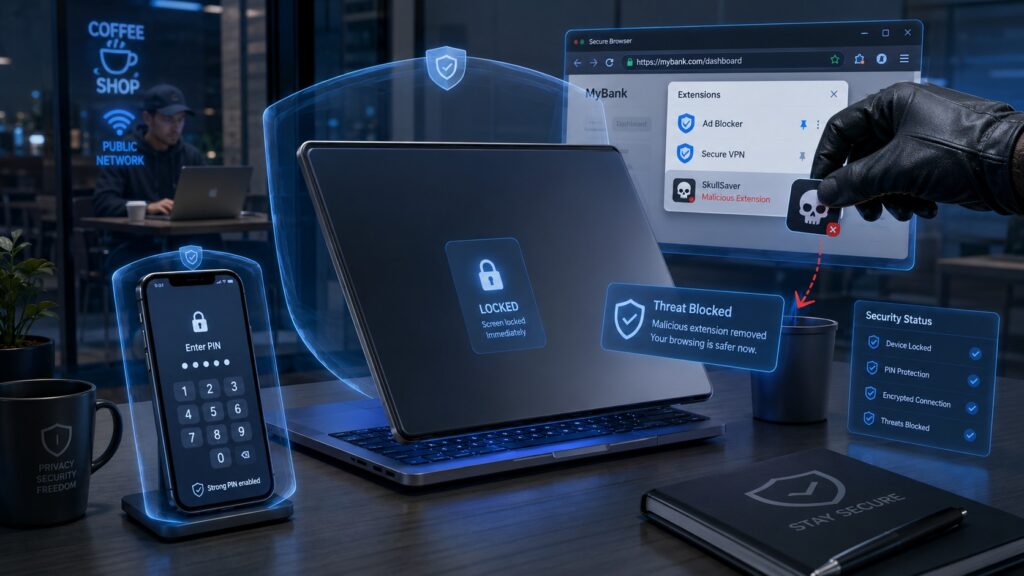
Browser hygiene
The browser is the most-used application on most devices and one of the largest attack surfaces. Key controls:
- Do not use the browser’s built-in password manager as your primary credential store. Browser-saved passwords are accessible to any malicious extension, sync to your browser account which is itself a target, and offer no hardware key protection.
- Audit installed extensions. Every extension has access to every page you visit. Remove anything not actively needed. Check permissions — an extension requesting access to all sites and clipboard is a significant risk.
- Keep the browser updated. Unpatched browser vulnerabilities are exploited within days of disclosure.
- Use separate browser profiles for work and personal activity. Credential and session separation limits blast radius if one profile is compromised.
Mobile security
- Enable full device encryption — on by default on iOS, verify on Android
- Use a strong PIN (6+ digits) or passphrase, not biometric alone — biometrics can be compelled; a PIN cannot be extracted without your cooperation in most jurisdictions
- Enable automatic OS updates — mobile OS patches frequently address active exploits
- Audit app permissions quarterly — revoke location, microphone, and camera access for any app that does not require it functionally
- Disable lock screen notification previews — visible notifications expose account activity and MFA codes to anyone with physical access to the device
- Enable remote wipe via Find My (Apple) or Find My Device (Google)
Credential exposure on shared or work devices
- Never save passwords in a browser on a shared or work device
- Always use private/incognito mode on shared devices — note that this does not protect against keyloggers or screen capture malware
- Sign out explicitly after every session on shared devices — closing the browser tab is not sufficient
- Do not use personal password manager browser extensions on work devices unless the device is fully under your control
Modern Standby and hibernate discipline
Windows Modern Standby keeps the device in a low-power state that maintains network connectivity. On devices configured for Modern Standby, the screen lock may not engage as quickly as expected on lid close.
Controls worth implementing:
# Require password on wake from sleep
powercfg /setacvalueindex SCHEME_CURRENT SUB_NONE CONSOLELOCK 1
powercfg /setdcvalueindex SCHEME_CURRENT SUB_NONE CONSOLELOCK 1

# Set hibernate on lid close (eliminates Modern Standby ambiguity)
powercfg /setacvalueindex SCHEME_CURRENT SUB_BUTTONS LIDACTION 2
powercfg /setdcvalueindex SCHEME_CURRENT SUB_BUTTONS LIDACTION 2
powercfg /s SCHEME_CURRENT
An unattended device in sleep rather than hibernate is an unlocked device for anyone with physical access and the right tooling.
Browser Fingerprinting and Tracking

What fingerprinting is
Cookies are the mechanism most people associate with online tracking. Browser fingerprinting is different and harder to block. It works by querying browser and device attributes — individually common, collectively unique — and combining them into an identifier that persists across sessions without storing anything on your device.
Attributes used in fingerprinting include: browser type and version, operating system, installed fonts, screen resolution and colour depth, timezone, language settings, canvas rendering output, WebGL renderer, audio context characteristics, CPU core count, and battery status.
The combination of these attributes is statistically unique for a large proportion of users. A site can identify a returning visitor without cookies, without login, and without any stored identifier on the device.
Testing your fingerprint
Check your current fingerprint exposure at coveryourtracks.eff.org (EFF’s Cover Your Tracks tool). It shows whether your browser is protecting you against fingerprinting and how unique your fingerprint is relative to other visitors.
Firefox hardening
Firefox with the right configuration provides better fingerprinting resistance than Chrome or Edge by default. Key settings:
- Set
privacy.resistFingerprintingtotruein about:config — normalises many fingerprinting vectors - Enable Enhanced Tracking Protection set to Strict
- Disable WebRTC if not needed (
media.peerconnection.enabled→ false) — WebRTC can leak local IP addresses even through a VPN - Consider the arkenfox user.js project on GitHub for a comprehensive hardened Firefox configuration
uBlock Origin
uBlock Origin is not optional. It is the most effective browser extension for blocking trackers, malicious scripts, and ads that serve as malware delivery vectors. It operates on a wide open-source filter list set and uses significantly less memory than alternative ad blockers.
Install it. Leave the default lists enabled. Add the uBlock Filters — Annoyances list. Do not add random third-party lists without reviewing them — a malicious filter list is itself an attack vector.
Chrome and Edge are removing Manifest V2 extension support, which degrades uBlock Origin’s blocking capability significantly on those browsers. Firefox retains full Manifest V2 support. This is a meaningful reason to prefer Firefox for privacy-conscious browsing.
Brave vs Firefox
Both are credible privacy browsers. The meaningful differences:
- Brave ships with fingerprinting resistance and ad blocking enabled by default — lower configuration burden
- Brave is Chromium-based — benefits from Chrome’s security model, subject to Google’s ecosystem influence
- Firefox is independent, more configurable, and retains full uBlock Origin capability
- Brave Shields are effective out of the box; Firefox with arkenfox and uBlock Origin is stronger when configured correctly
For most users: Brave as default browser is a significant improvement over Chrome or Edge with zero configuration effort. For higher assurance: Firefox with hardening applied.
Why incognito does not do what people think
Incognito or private browsing mode does one thing: it does not store browsing history, cookies, or form data on your device after the session ends. It does not:
- Hide your traffic from your ISP
- Hide your IP address from sites you visit
- Prevent fingerprinting
- Block trackers during the session
- Protect against malware or keyloggers on the device
It is a local privacy tool for shared devices. It is not an anonymity or security tool.
VPN — What It Does and Doesn’t Protect

Define your threat model first
A VPN is a tool for a specific set of problems. Buying a VPN without defining what you are protecting against is buying a lock without knowing what door you are putting it on.
What a VPN actually does
A VPN encrypts traffic between your device and the VPN server and routes it through that server before it reaches its destination. Your ISP sees encrypted traffic to the VPN server — not the sites you visit. Sites you visit see the VPN server’s IP address — not yours.
What a VPN protects against:
- ISP traffic logging and surveillance
- Network-level interception on untrusted networks (public Wi-Fi, hotel networks)
- IP-based geolocation and regional content blocking
- Basic IP address exposure to sites you visit
What a VPN does not protect against:
- Fingerprinting — your browser fingerprint is unchanged
- Malware already on your device
- Account compromise — a stolen password works regardless of VPN
- Tracking via logged-in accounts — Google and Facebook track you by account, not IP
- DNS leaks if the VPN client is not configured correctly
- A malicious VPN provider — you are moving trust from your ISP to your VPN provider
Mullvad
The strongest privacy posture of any commercial VPN. No account required — you pay with a generated account number, no email address collected. Accepts cash and Monero. No-log policy audited by Cure53. WireGuard and OpenVPN support. Does not offer a free tier or affiliate programme — no financial incentive to oversell.
ProtonVPN
Run by the same organisation as ProtonMail. No-log policy audited independently. Open source clients. Free tier with no data cap — the only credible free VPN option. Integrates with the Proton ecosystem. Swiss jurisdiction.
What audited actually means
A no-log policy is a claim. An audited no-log policy means an independent security firm examined the infrastructure and configuration and found no evidence of logging. It does not mean logging is technically impossible — it means it was not present at the time of audit. Mullvad and ProtonVPN have both undergone multiple independent audits with published results.
Avoid VPN providers that market heavily via affiliate programmes, offer lifetime subscriptions at low prices, or cannot point to published independent audits. The business model of a VPN provider with no credible audit is: sell you privacy while monetising your data.
DNS and Encrypted DNS

Why plain DNS leaks everything
Every time you visit a website your device sends a DNS query to resolve the domain name to an IP address. By default this query is sent in plaintext over UDP port 53. Your ISP, your network provider, and anyone on the network path can see every domain you query — even if the subsequent connection is encrypted over HTTPS.
DNS queries reveal your browsing behaviour in full detail without requiring access to the content of any connection.
DNS over HTTPS and DNS over TLS
Both protocols encrypt DNS queries so they cannot be read in transit.
- DNS over HTTPS (DoH) — queries sent over HTTPS on port 443, indistinguishable from normal web traffic
- DNS over TLS (DoT) — queries sent over TLS on port 853, encrypted but identifiable as DNS traffic
Both are significantly better than plain DNS. DoH is more broadly supported across platforms and harder to block.
Provider options:
- Cloudflare 1.1.1.1 — fast, DoH and DoT support, no-log policy audited by KPMG, free
- NextDNS — DoH and DoT, configurable per-device filtering and logging, free tier (300,000 queries/month), paid tier unlimited
- Quad9 (9.9.9.9) — non-profit operated, blocks malicious domains by default, DoH and DoT, Swiss jurisdiction
Pi-hole
Pi-hole is a self-hosted DNS sinkhole that blocks advertising and tracking domains at the network level for all devices on your network. Runs on a Raspberry Pi or any Linux host. All DNS queries route through Pi-hole, which filters against blocklists before forwarding clean queries to an upstream resolver.
Combined with a DoH upstream (Cloudflare or NextDNS), Pi-hole provides network-wide ad and tracker blocking plus encrypted DNS resolution. Every device on the network benefits without per-device configuration.
Encrypted DNS on mobile
- iOS — Settings → General → VPN & Device Management → DNS — install a DNS profile, or use the 1.1.1.1 app from Cloudflare
- Android 9+ — Settings → Network & Internet → Private DNS — enter your DoT provider hostname (e.g. dns.quad9.net)
Gotchas: split-horizon DNS and VPN conflicts
Encrypted DNS and VPN can conflict. Many VPNs set their own DNS resolver and will route DNS queries through the VPN tunnel. If both a system-level encrypted DNS and a VPN resolver are configured, DNS queries may leak outside the VPN tunnel depending on resolution order.
Verify with dnsleaktest.com when running a VPN — confirm that DNS queries are resolving through the expected resolver, not a fallback plaintext path.
Open Source Intelligence — What Others Can Find About You

Think like an attacker
Before deploying defences, understand what your current exposure looks like from the outside. An attacker researching you before a targeted attack does not need special tools for the initial reconnaissance phase. Most of the information they need is publicly available and aggregatable in under an hour.
Google dorking your own name
"Your Full Name" site:linkedin.com
"Your Full Name" filetype:pdf
"your@email.com"
"Your Full Name" "your city" OR "your employer name"
"Your Full Name" -site:linkedin.com -site:facebook.com
Document what surfaces. Old forum posts, cached profiles, documents with your name in metadata, news articles, company websites listing you as a contact.
Checking your email addresses
- hunter.io — shows email addresses publicly associated with a domain
- epieos.com — OSINT tool that queries Google and Gravatar for account associations with an email address
- holehe — open source tool that checks whether an email address is registered on 120+ services without triggering password resets
Shodan
Shodan (shodan.io) indexes internet-connected devices and services. Search your home IP address — Shodan will show any services your router or home network is exposing to the internet. Open ports, running services, software versions.
Social media exposure
Audit your social media profiles from a logged-out browser or incognito mode:
- Full name, employer, location visible on profile
- Tagged photos revealing your home, car, daily routine, family members
- Posts that confirm your date of birth, home area, or other personal data
- Connections list revealing colleagues and family members who can be used as social engineering vectors
Running a personal OSINT audit
- Google dork your full name, email addresses, and phone numbers
- Check HIBP and XposedOrNot for all email addresses
- Search your home IP on Shodan
- Review social media profiles from a logged-out session
- Search your name on three to five people-search sites
- Run a DeHashed search on all identifiers
- Document findings and action removals
The digital-defense.io checklist covers many of these vectors in its Human Aspect and Social Media sections — use it as a parallel audit framework.
Supply Chain and Third Party Risk

OAuth app permissions and their blast radius
OAuth allows third-party applications to access your accounts without sharing your password. You have almost certainly authorised dozens of apps across Google, Microsoft, and GitHub that you no longer actively use — and each one retains the access you granted until you explicitly revoke it.
Auditing and revoking app access:
- Google — myaccount.google.com/permissions
- Microsoft — myapps.microsoft.com or Entra ID → Enterprise Applications
- GitHub — github.com/settings/applications
- Twitter/X — Settings → Security → Connected Apps
- Apple — appleid.apple.com → Sign in with Apple
Login with Google/Microsoft — the risk model
Using a platform identity provider to sign in to third-party services concentrates risk. If your Google or Microsoft account is compromised, every service you signed into with that account is compromised simultaneously. Treat your Google and Microsoft accounts as the highest-tier assets they are.
API key hygiene for developers
Common failure modes:
- API keys committed to public GitHub repositories
- Keys stored in plaintext in scripts or configuration files
- Keys with excessive permissions
- Keys that never expire and are never rotated
- Keys shared between multiple projects or team members
Controls:
- Store API keys in a secrets manager or password manager — never in plaintext files
- Apply minimum necessary permissions at key creation
- Set expiry dates where the platform supports them
- Rotate keys periodically and immediately on suspected compromise
- Use environment variables rather than hardcoded values in code
- Audit GitHub repositories with tools like truffleHog or git-secrets before making them public
npm, pip, and dependency risk
- Review package download counts and publish dates before installing unfamiliar packages
- Check the GitHub repository linked in the package metadata
- Use lockfiles (package-lock.json, requirements.txt with pinned versions)
- Run
npm auditandpip-auditperiodically against your dependency trees
Physical Security
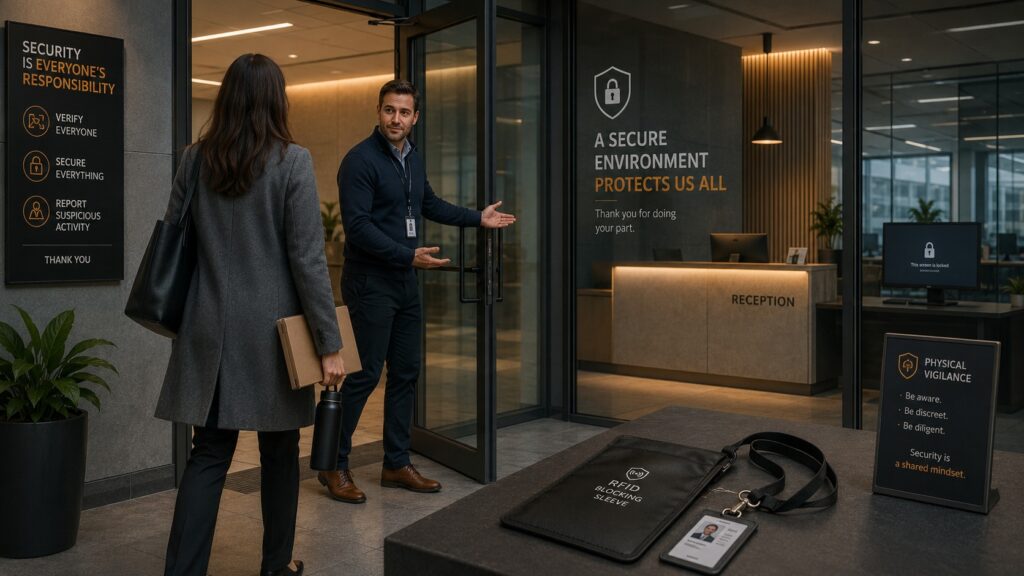
The trusted stranger problem
Physical presence creates automatic trust that credentials and verification procedures exist to prevent. A person in your building is trusted more than a voice on the phone, regardless of whether they have been verified. Attackers know this and exploit it.
Tailgating and piggybacking
Tailgating is following an authorised person through a secured door without independent authorisation. It is the most common physical security bypass and the most socially difficult to prevent — holding a door open for someone behind you is a deeply ingrained courtesy.
The attacker’s approach is deliberate: arrive at an access-controlled entry point carrying something that makes asking for help feel natural. Appear to belong. Move with purpose. Most people will hold the door without questioning it.
The correct response does not require confrontation:
- Do not hold secured doors open for people you cannot verify, regardless of whether they appear to belong
- If challenged: “Sorry, everyone has to badge in separately — it’s policy” is a complete and reasonable response
- If someone cannot badge in, direct them to reception — do not badge them in yourself
- A legitimate visitor or contractor will have been pre-registered and will not pressure you to bypass the access control
Visitor and contractor verification
A uniform, a high-vis jacket, or a tool bag is not authorisation. Contractors and visitors should be pre-registered, met at reception, and accompanied while in secure areas. An unaccompanied person in an area they should not be in should be questioned politely and directed to reception regardless of how legitimate they appear.
Clean desk policy
- Lock your screen when stepping away from your desk — Windows + L, no exceptions
- Do not leave passwords, access codes, or sensitive information written down at your desk
- Do not leave printed documents containing personal or business data unattended
- Shred sensitive documents before disposal
- Clear whiteboards at the end of meetings
Shoulder surfing
- Position your screen away from walkways and open areas where possible
- Use a privacy filter on your laptop screen when working in public
- Be aware of who is behind you when entering passwords or MFA codes in public
- On mobile: disable notification previews on the lock screen
Device theft
- Never leave a laptop unattended in a public space, even briefly
- Do not leave devices visible in a parked vehicle
- Cable locks for desktops and docked laptops in shared office environments
- Full disk encryption on all devices — BitLocker on Windows, FileVault on macOS
- Verify BitLocker recovery keys are stored and accessible
Access cards and RFID
Standard HID and MIFARE access cards used in most office buildings can be cloned with inexpensive off-the-shelf hardware. An attacker in close proximity can read your card without physical contact.
Controls:
- RFID-blocking card sleeves or wallets for access cards you carry regularly
- Report lost or stolen access cards immediately
- Where your organisation uses higher-assurance cards (SEOS, DESFire EV2/EV3), physical loss still requires immediate reporting
Working in public
- Use a VPN on any untrusted network
- Use a privacy screen filter
- Do not discuss sensitive client, business, or personal information in earshot of others
- Avoid accessing highly sensitive systems on public networks where alternatives exist
The building as a social engineering vector
Physical access enables attacks that are impossible remotely. An attacker inside your building can plug a USB device into an unattended machine, access unlocked workstations, photograph screens and documents, eavesdrop on conversations, or plant a network implant on an accessible switch or port.
Physical security is not separate from cyber security. It is the layer underneath it.
Key Compromise and Recovery Planning

The scenario nobody plans for
You lose your hardware key. Or it is stolen. Or it stops working. If your recovery plan is “figure it out then,” your security posture has a single point of failure that an attacker can exploit simply by stealing a device from your keyring.
When a hardware key is lost or stolen
Immediate actions in priority order:
- Log in to your highest-value accounts using a backup method — backup key, backup codes, or TOTP
- Revoke the lost key from every account it was registered on — do not wait to see if it turns up
- Verify that no unauthorised access occurred during the window between loss and revocation
- Check active sessions on all affected accounts and terminate any unrecognised ones
- If the key was also used for physical access (PIV, smart card), report it to your facilities or IT team immediately
Pre-planned revocation
Maintain a record — in your password manager — of every account that has a hardware key enrolled. Include:
- Service name
- MFA methods enrolled (key 1, key 2, TOTP backup, backup codes)
- Date enrolled
- How to reach the MFA management page directly
Backup codes
Where to store them:
- Printed and stored in a physically secure location — a locked drawer, a safe, a fireproof box
- Encrypted in your password manager as a secondary copy
Where not to store them:
- In your email inbox
- In a cloud notes app without encryption
- On the same device as your password manager without additional protection
- In the same physical location as your hardware keys
Testing your recovery process
- Attempt to log in using only your backup key — confirm it works on all Tier 1 accounts
- Attempt to log in using a backup code on one account — confirm the code is valid
- Confirm your TOTP backup codes in 2FAS generate correctly for all enrolled accounts
- Verify that your documented account list matches the keys actually enrolled
Run this test annually.
Account recovery planning for others
If something happens to you, can someone you trust access what they need?
- A sealed physical envelope containing recovery instructions stored with a solicitor or trusted person
- Password manager emergency access — Keeper and Bitwarden both support emergency access designations
- A documented account inventory stored in a location your designated person knows about
Maintaining Your Security Posture
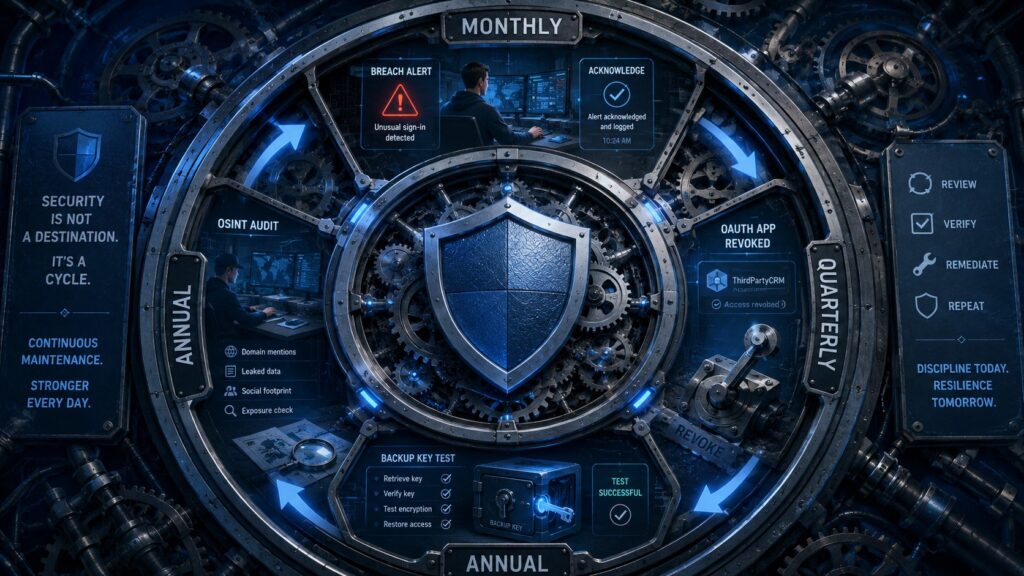
Security is not a project with a completion date. A structured maintenance cadence catches changes before they become vulnerabilities.
Monthly
- Check HIBP and Mozilla Monitor for new breach notifications
- Review active sessions on primary email, Microsoft, and Google accounts
- Check for unrecognised devices in your password manager’s trusted device list
Quarterly
- Audit OAuth app permissions on Google, Microsoft, GitHub — revoke anything unused
- Review accounts with SMS MFA still enabled — migrate where possible
- Check domain registrar account and DNS records for unexpected changes
- Review mobile app permissions
Annually
- Run a full OSINT audit against yourself — Section 16 process
- Run a one-month DeHashed audit on all identifiers
- Test backup key and backup code recovery on all Tier 1 accounts
- Work through the digital-defense.io checklist in full — 12 domains, tiered by severity
- Rotate API keys and application passwords not rotated in over 12 months
- Review and update key compromise recovery documentation
- Review data broker removal status — re-submit via Incogni for any re-added profiles
Responding to a breach notification
- Identify which service was breached and what data was exposed
- Change the password for that service immediately
- If the breached service shared a password with any other service — rotate those immediately
- If TOTP seeds were exposed — re-enrol MFA with new seeds
- Check for suspicious activity on the breached account
- If payment data was exposed — notify your bank and monitor statements
Incident response: if you are compromised
- Regain control of your primary email first
- Change passwords on all accounts that share the compromised email as recovery address
- Revoke all active sessions on compromised accounts
- Check and remove any inbox rules or forwarding addresses added without your action
- Review and revoke connected OAuth apps on all affected accounts
- Check for new MFA devices enrolled on affected accounts — remove any you did not add
- Notify relevant parties if business accounts, client data, or payment information was exposed
Quick Reference
Recommended stack
| Layer | Tool | Purpose |
|---|---|---|
| Password manager | Keeper | Credential storage, breach watch |
| TOTP authenticator | 2FAS | App-based MFA, E2EE backup |
| Hardware key (primary) | YubiKey 5 NFC / 5C NFC | FIDO2, TOTP, NFC |
| Hardware key (backup) | YubiKey 5 FIDO FIPS | FIDO2, FIPS validated |
| Breach monitoring | HIBP + Mozilla Monitor | Email breach alerts, free |
| Breach audit | DeHashed | Annual deep audit |
| Data broker removal | Incogni | Automated removal, 420+ brokers |
| Dark web monitoring | Microsoft Defender | Included with M365 Personal |
| Email aliases | SimpleLogin | Per-service alias, custom domain |
| DNS | NextDNS or Quad9 | Encrypted DNS, malware blocking |
| VPN | Mullvad or ProtonVPN | Audited, no-log |
| Browser | Firefox + uBlock Origin | Hardened, full MV2 support |
Alternatives at a glance
| Category | Recommended | Alternatives |
|---|---|---|
| Password manager | Keeper | Bitwarden, 1Password, Proton Pass |
| Authenticator | 2FAS | Ente Auth, Proton Authenticator, Aegis |
| Hardware key | YubiKey 5 NFC | Google Titan, Nitrokey, OnlyKey |
| Email alias | SimpleLogin | AnonAddy, Firefox Relay, Fastmail |
| Data removal | Incogni | DeleteMe |
| Browser | Firefox | Brave |
| VPN | Mullvad | ProtonVPN |
Directory and audit resources
- passkeys.directory — passkey support by service
- 2fa.directory — MFA method support by service
- itsactually.fail — services with weak or bypassable MFA implementations
- digital-defense.io — interactive security checklist, 12 domains, tiered by severity
- awesome-privacy.xyz — privacy-respecting software directory
- haveibeenpwned.com — breach check and monitoring
- dehashed.com — deep breach audit
- coveryourtracks.eff.org — browser fingerprint test
- dnsleaktest.com — VPN DNS leak verification
- shodan.io — internet-facing device and service exposure


